
TiviMate IPTV Setup Guide 2026: Firestick, Android TV & Xtream Codes
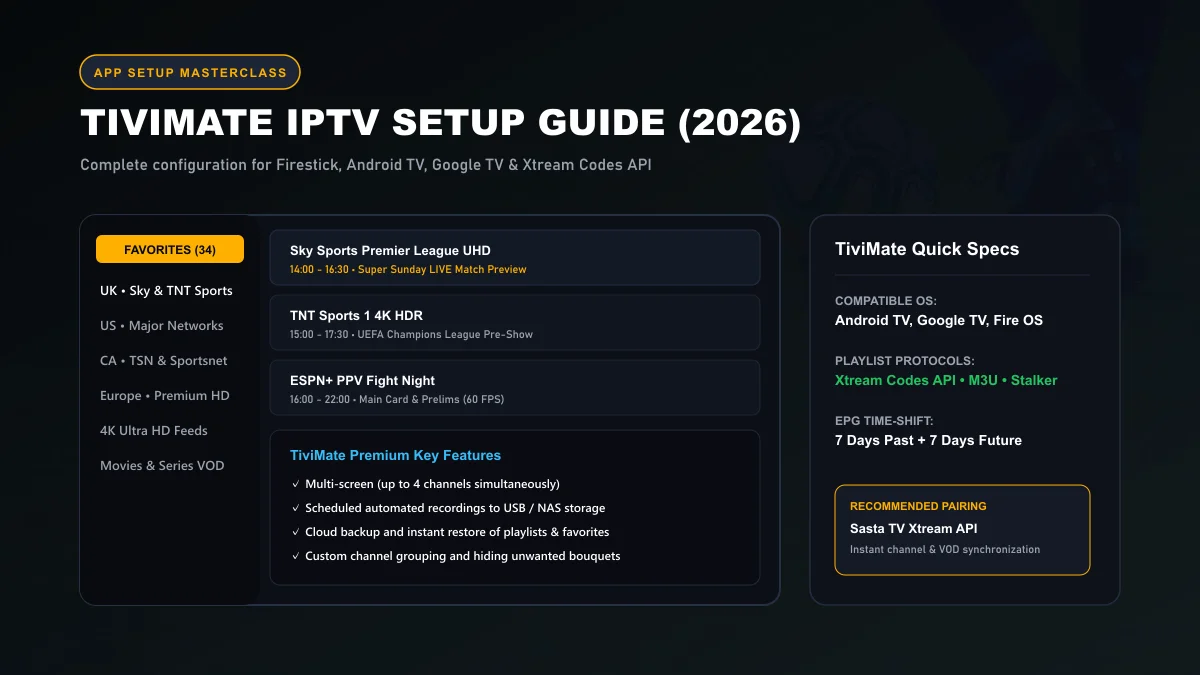
TiviMate IPTV Player is widely considered the gold standard of Android-based television streaming software in 2026. Designed exclusively for TV displays and remote controls, TiviMate delivers an interface virtually indistinguishable from high-end satellite set-top boxes, featuring lightning-fast EPG timelines, 4-way multi-view, scheduled USB recording, and deep Xtream Codes API integration.
What TiviMate Is (Free vs Premium)
Developed specifically for Android TV, Google TV, and Amazon Fire OS, TiviMate is an independent media player. It does not provide any video content or streams of its own; rather, it connects to your IPTV subscription line (such as Sasta TV) and decodes live television, movies, and series with hardware acceleration.
While TiviMate offers a free tier, upgrading to TiviMate Premium unlocks its true capabilities:
| Feature | TiviMate Free | TiviMate Premium |
|---|---|---|
| Active Playlists Allowed | 1 Playlist only | Multiple Playlists supported |
| Electronic Program Guide (EPG) | Basic single-day view | 7-Day EPG + Auto-refresh on start |
| Multi-Screen (Quad View) | ✗ Not Available | ✓ Up to 4 screens simultaneously |
| Catch-Up TV Navigation | ✗ Not Available | ✓ Full 7-day past archives |
| Scheduled Cloud/USB Recording | ✗ Not Available | ✓ Programmed timer recordings |
| Custom Groups & Hiding Channels | ✗ Not Available | ✓ Complete bouquet customization |
Supported Device Types & Requirements
TiviMate requires an Android-based operating system built for television displays (Android 5.0 or higher). Fully compatible devices include:
- Amazon Fire TV: Fire TV Stick 4K, 4K Max (1st & 2nd Gen), Fire TV Cube, Fire TV 4K Smart TVs.
- Google TV / Android TV Boxes: Chromecast with Google TV (4K), Nvidia Shield TV Pro, Xiaomi Mi Box S, Mecool KM2.
- Android TV Smart Televisions: Sony Bravia, Philips Ambilight, TCL Google TV, and Hisense Android models.
Apple TV, Samsung & LG Note: TiviMate does not run on Apple tvOS, Samsung Tizen, or LG webOS. If you own an LG or Samsung TV, consider our recommended alternative players detailed in the Smart TV IPTV guide.
Installing TiviMate on Firestick & Android TV
Depending on your hardware, installation takes under three minutes:
Method A: Google TV & Android TV (Official Play Store)
On devices running official Google TV or Android TV with Google Play Services (such as Chromecast or Nvidia Shield), open the Google Play Store on your television, search for TiviMate IPTV Player, and click Install. In-app account activation and multi-device subscription licensing are managed directly via Google Play Subscription Services .
Method B: Amazon Firestick (Downloader Sideloading)
Because Amazon does not host IPTV media players on the Amazon Appstore, you install TiviMate via the official Downloader utility. Fire OS is built upon the Android Open Source Project (AOSP), as detailed in Android Developer Media Architecture . Review our full Amazon Firestick setup guide for developer option instructions, or follow these quick steps:
- Install the Downloader app from the Amazon Appstore.
- In Firestick Settings > My Fire TV > Developer Options, set Downloader to ON under 'Install Unknown Apps'.
- Open Downloader and enter the official TiviMate code or direct download link.
- Click Install, then launch TiviMate.
Step-by-Step Xtream Codes API Configuration
The Xtream Codes API is the gold standard for connecting TiviMate to Sasta TV. It automatically synchronizes 25,000+ live channels, 120,000+ on-demand titles, and multi-day EPG guides into structured folders.
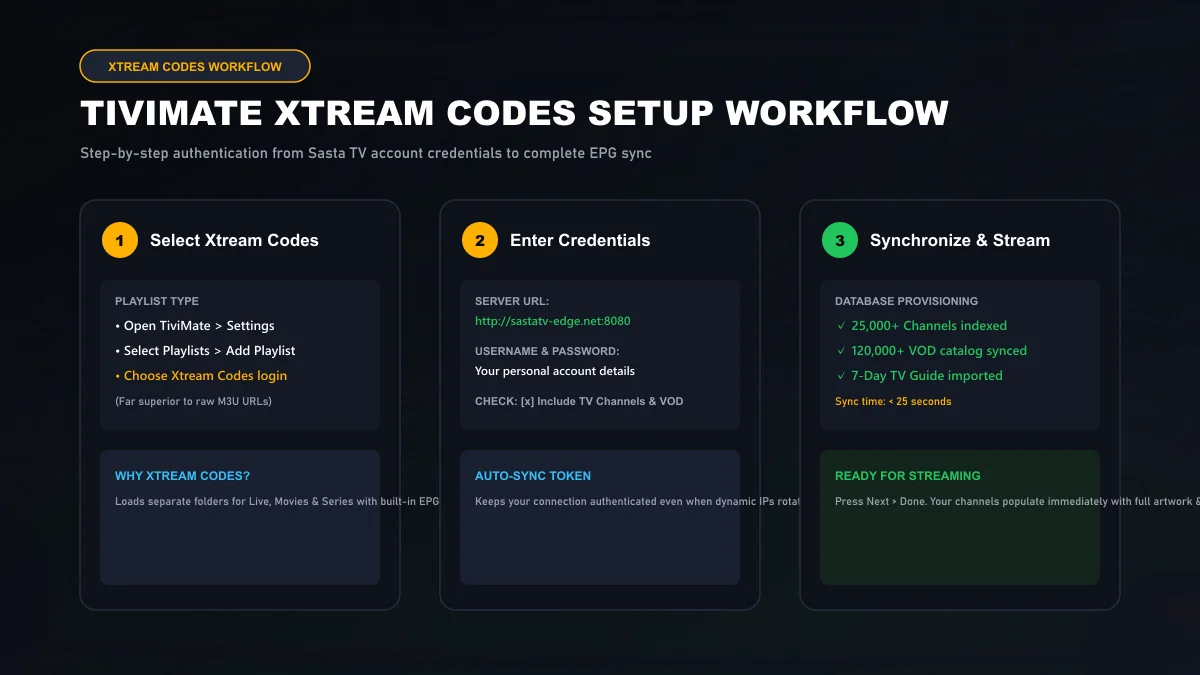
- Launch TiviMate and click Add Playlist.
- Select Xtream Codes login.
- Enter your Sasta TV connection details:
- Server address: The edge URL from your activation details (e.g.,
http://sastatv-edge.net:8080) - Username: Your personal account login
- Password: Your alphanumeric password
- Server address: The edge URL from your activation details (e.g.,
- Check the box for Include VOD so on-demand movies and TV series populate in separate categories.
- Click Next. TiviMate will connect to the server, query the API, and display "Playlist is processed".
- Click Done. Your channels and TV guide will populate instantly.
Need subscription credentials? Explore our transparent Sasta TV subscription pricing backed by a 7-day money-back guarantee.
M3U Playlist URL Alternative Setup
If your account uses a static M3U Plus link rather than Xtream API credentials:
- In TiviMate, go to Settings > Playlists > Add Playlist.
- Select M3U playlist.
- Choose Enter URL and paste your full Sasta TV M3U link.
- Set the output format to MPEG-TS or HLS.
- Click Done.
EPG Configuration & Past Days Cache Tuning
An optimized Electronic Program Guide keeps TiviMate responsive and prevents memory exhaustion on devices with 8GB internal storage like the Firestick.
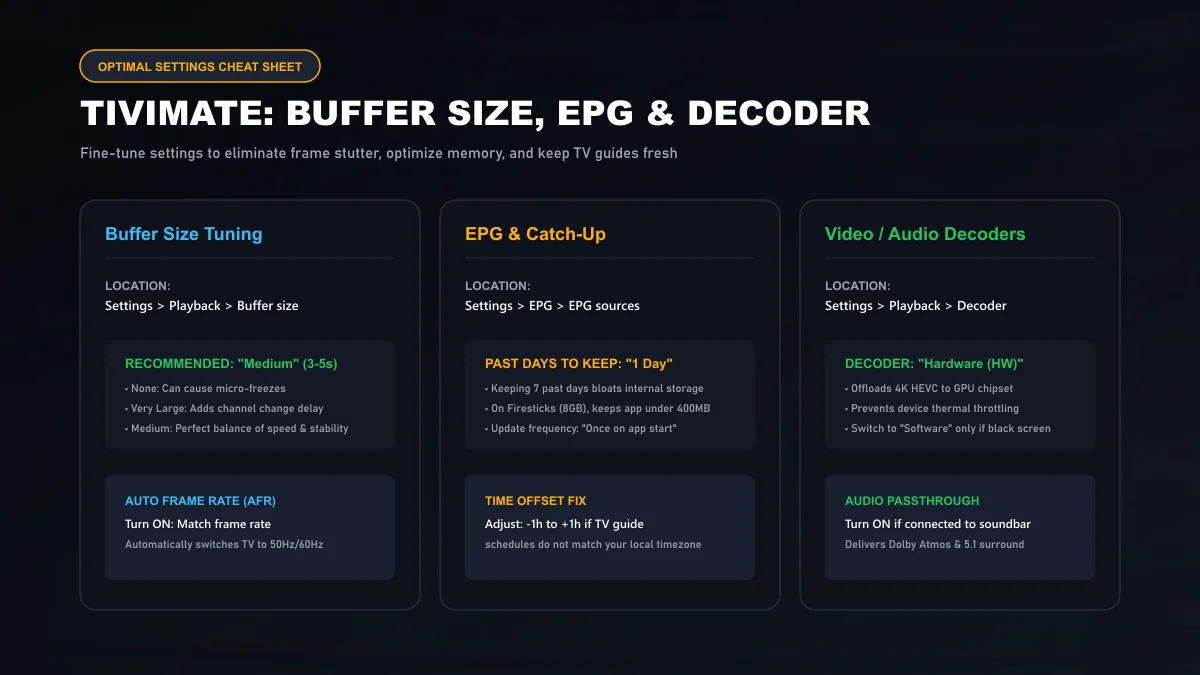
Recommended EPG Settings:
- Past days to keep: Set to 1 day (Settings > EPG > Past days to keep). Storing 7 days of past EPG for 25,000 channels consumes over 1.2GB of internal storage, which can freeze Firesticks.
- Update on app start: Turn ON. TiviMate refreshes schedule data quietly in the background upon launch.
- Time offset: If TV listings do not match your wall clock, navigate to EPG sources > Sasta TV EPG > Time offset and adjust by
+1or-1hour.
Favorites & Channel Group Organization
Managing 25,000+ channels is effortless when you customize your channel groups:
- Adding Channels to Favorites: While watching any channel, hold down the Select / OK button on your remote to open the channel menu, then choose Add to Favorites.
- Hiding Unused Bouquets: Open the TV guide, press the Left arrow to view the group list, hold down the Select button on any group, and click Manage Groups. Toggle off international languages or categories you never watch to keep your menu lightning-fast.
- Reordering Categories: Move your favorite groups (such as UK Sports UHD or US Entertainment) directly to the top of the guide.
Catch-Up TV & Playback Buffer Settings
Channels supporting Catch-Up TV display a small clock icon next to the channel name in TiviMate. To watch a program that aired yesterday, scroll backward in the EPG timeline and press Select.
Optimal Playback Buffer Configuration
Navigate to Settings > Playback > Buffer size. We recommend selecting Medium (approx. 3 to 5 seconds of preloaded video). This prevents micro-stutters during transient Wi-Fi drops while keeping channel-switching delay under two seconds.
If you suffer from continuous buffering, consult our expert IPTV buffering diagnostic guide.
Backup, Restore & Multi-Device Sync
Once you have organized your favorites, hidden unwanted channel groups, and tuned your buffer settings, protect your configuration:
- Navigate to Settings > General > Backup data.
- Save the backup file to your internal storage, USB drive, or a local LAN network share (SMB).
- To configure a second TV in your bedroom, install TiviMate, go to Settings > General > Restore data, and select your backup file. Your entire customized setup clones in five seconds.
Troubleshooting Common TiviMate Errors
Here are quick resolutions for common TiviMate status codes:
Error 401 / 403 (Unauthorized)
Indicates an expired subscription or typographical error in your credentials. Verify your credentials in Settings > Playlists > Sasta TV > Xtream Codes parameters.
ParserException / DataSourceException
The video stream header cannot be parsed by the default internal player. In Settings > Playback, switch Audio decoder and Video decoder to Hardware.
For more device-specific walkthroughs, visit our IPTV setup tutorials library or reach out to our team via 24/7 technical customer support.
TiviMate Tutorial Frequently Asked Questions
What is the difference between TiviMate Free and TiviMate Premium?
The free version permits basic single-playlist playback. TiviMate Premium unlocks vital features: multi-screen 4-way split, manual recording, scheduled recording, 7-day catch-up TV navigation, custom channel group ordering, search functionality, and multi-playlist management across up to 5 devices.
Can I use TiviMate on an Apple TV, iPhone, or LG Smart TV?
No. TiviMate is compiled exclusively for Android-based television platforms (Android TV, Google TV, and Amazon Fire OS). If you own an Apple TV or LG Smart TV, we recommend IPTV Smarters Pro, IBO Player Pro, or GSE Smart IPTV as cross-platform alternatives.
How do I purchase and activate TiviMate Premium if I only have a Firestick?
Because Amazon Firesticks lack Google Play Services, you must purchase TiviMate Premium using the official 'TiviMate Companion' app on an Android phone or tablet, or through an Android emulator on Windows/Mac. Once purchased, log in with your TiviMate account credentials inside the app on your Firestick.
What causes TiviMate 'ParserException' or 'DataSourceException' errors?
A ParserException typically indicates that your provider's M3U stream format has a corrupted header or that your account credentials have expired. Switching your stream output format from M3U8 to HLS/TS in playlist settings, or re-authenticating with Xtream Codes API, resolves this immediately.
How do I prevent TiviMate from eating up all my Firestick storage?
In TiviMate, navigate to Settings > EPG > EPG sources > Sasta TV EPG, and set 'Past days to keep' to 1 day instead of 7 days. This prevents the EPG database cache from growing beyond 300MB, leaving ample storage for device performance.
How does TiviMate multi-screen work with Sasta TV?
TiviMate allows watching 2, 3, or 4 streams simultaneously on one television. However, each active screen consumes one stream connection on your account. To watch multi-screen without automatic disconnection, ensure you are subscribed to a Sasta TV multi-room plan (2 to 4 screens).