
The Ultimate IPTV Subscription Setup for Amazon Firestick (2026)
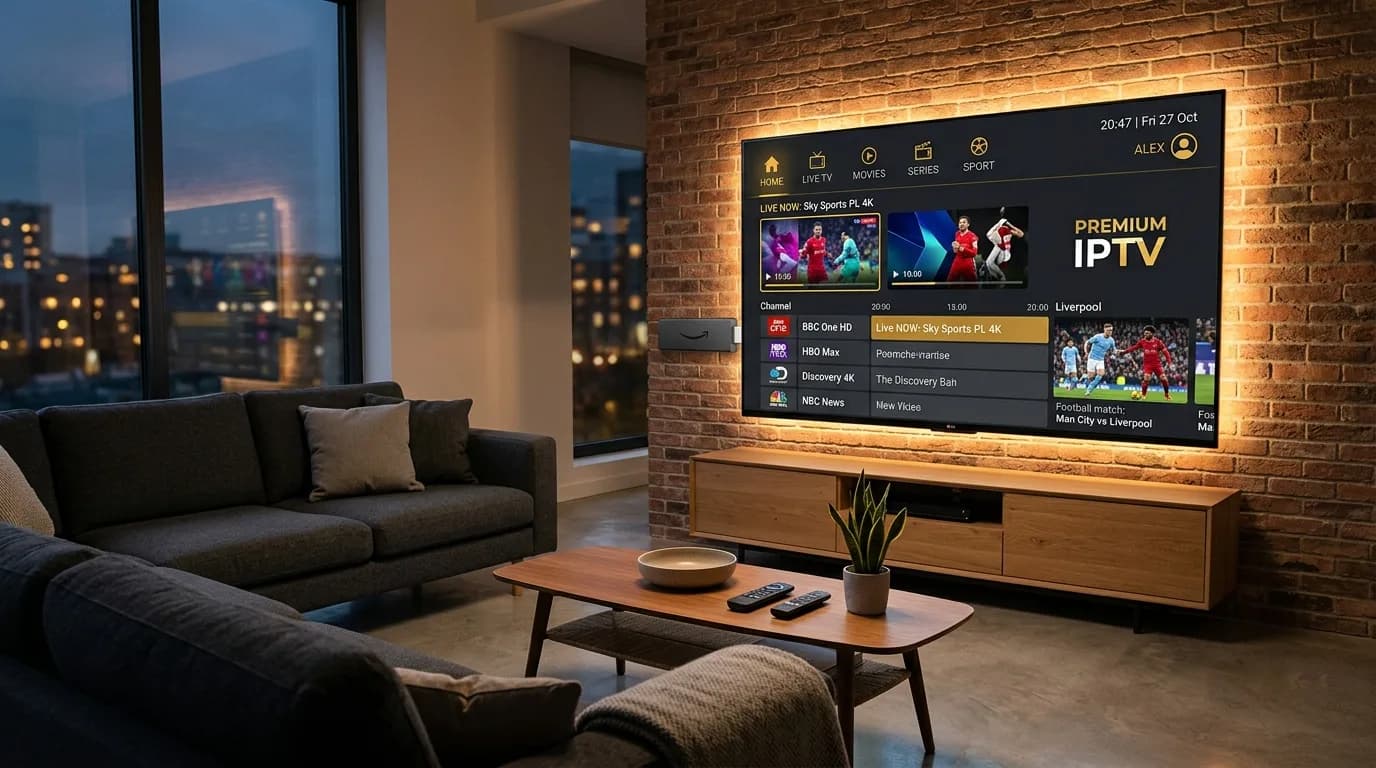
Setting up an IPTV subscription on an Amazon Fire TV Stick transforms your television into a complete entertainment center with access to thousands of live channels, sports broadcasts, and on-demand movies. By using a modern media player like TiviMate or IPTV Smarters Pro alongside high-speed Xtream Codes credentials, you can complete the entire installation in under 10 minutes without jailbreaking your device.
What You Need Before Starting
Before beginning the configuration process, gather all necessary hardware, network connections, and account credentials. Having these elements ready ensures a smooth setup without interruptions or authentication errors:
Compatible Fire TV Hardware
Any modern Fire TV hardware running Fire OS 6, 7, or 8 works smoothly. We recommend the Fire TV Stick 4K or Fire TV Stick 4K Max (2nd Gen) because their faster quad-core processors and 2GB of RAM prevent menu stuttering when navigating extensive channel catalogs.
Reliable Internet Bandwidth
Ensure your home network delivers at least 25 Mbps for crisp 1080p streams and 50 Mbps for high-bitrate 4K 60 FPS sports broadcasts. Whenever possible, connect to your router’s 5 GHz Wi-Fi frequency band rather than congested 2.4 GHz channels.
Active IPTV Subscription Credentials
You require an active IPTV subscription line from a reliable service provider. When you subscribe through our Sasta TV pricing plans, your unique Xtream Codes API credentials (Server URL, Username, and Password) and M3U playlist link are delivered to your WhatsApp and email within 5 to 15 minutes.
The Downloader Application
Because dedicated IPTV players are not hosted on the default Amazon Appstore due to distribution policies, you will use the official Downloader by AFTVnews utility to install your preferred player securely. If you are new to sideloading, our detailed device setup tutorials walk through platform-specific basics step by step.
How IPTV Works on Firestick
IPTV (Internet Protocol Television) streams broadcast television channels over internet protocol networks rather than traditional coaxial cable or satellite transponders. On an Amazon Firestick, this workflow is divided into three distinct layers:
- Content Delivery Server: High-bandwidth European servers encode and transmit digital audio and video streams (typically in H.264 or HEVC/H.265 compression).
- Playlist Authentication Protocol: Your Firestick communicates with the provider’s server using the Xtream Codes API or an M3U8 index file to verify subscription validity and parse the channel list.
- Native Player Decoder: Your chosen app (such as TiviMate) leverages the Firestick’s hardware GPU to decompress the stream in real time and render smooth 50/60 FPS playback on your television display.
Why Xtream Codes API is preferred over raw M3U links: While raw M3U files dump thousands of raw stream URLs into one massive text file that can lag older Firestick models, Xtream Codes API queries data on demand. This yields instantaneous channel categorization, integrated TV guides, and automatic movie poster generation.
Best IPTV Player Options for Firestick
Selecting the right media player is the single most important factor determining your day-to-day user experience. The best IPTV players provide instantaneous channel switching, clear Electronic Program Guides (EPG), and hardware-accelerated video decoding.
1. TiviMate IPTV Player (The Industry Gold Standard)
TiviMate is widely considered the finest IPTV player available for Fire OS and Android TV devices. Designed specifically for television screens navigated with a remote control, it features a television-grade EPG interface, multi-view display (watching up to four channels simultaneously), scheduled recordings, and custom favorite grouping. For an in-depth walkthrough of features, EPG cache sizing, and multi-view setup, read our dedicated TiviMate IPTV setup guide.
2. IPTV Smarters Pro (Versatile & User-Friendly)
IPTV Smarters Pro offers an intuitive Netflix-style dashboard that neatly separates Live TV, On-Demand Movies, and Multi-Season TV Series. It includes integrated subtitle support, parental controls, and multi-screen viewing, making it an excellent choice for family households. Follow our step-by-step IPTV Smarters Pro setup guide for cross-device installation instructions.
3. VLC Media Player (Open-Source Fallback)
When diagnosing stream issues or playing raw network streams, the official VideoLAN VLC for Android serves as a rock-solid media decoder capable of handling virtually any custom container or uncommon audio codec.
Step-by-Step Firestick IPTV Setup
Follow this proven five-step procedure to configure your Firestick cleanly. According to official Amazon Fire TV documentation , maintaining up-to-date operating system software ensures full compatibility with modern streaming decoders.
1Enable Developer Options on Fire OS
Go to Settings > My Fire TV > Developer Options. If Developer Options is hidden on newer Fire OS versions, navigate to My Fire TV > About and click your device’s name 7 times rapidly until you see the alert "You are now a developer." Once visible, toggle Install Unknown Apps to ON for Downloader.
2Install the Downloader Application
Return to your Firestick Home Screen, open the Find / Search icon, and type "Downloader". Select the orange Downloader app icon developed by AFTVnews and click Download / Get to install it for free.
3Download and Install Your IPTV Player
Launch Downloader, grant storage permissions when prompted, and enter the official installation code or URL for your player (such as TiviMate or IPTV Smarters Pro). Once the APK package finishes downloading, click Install, then delete the setup file to conserve internal storage.
4Input Your Sasta TV Xtream Codes Credentials
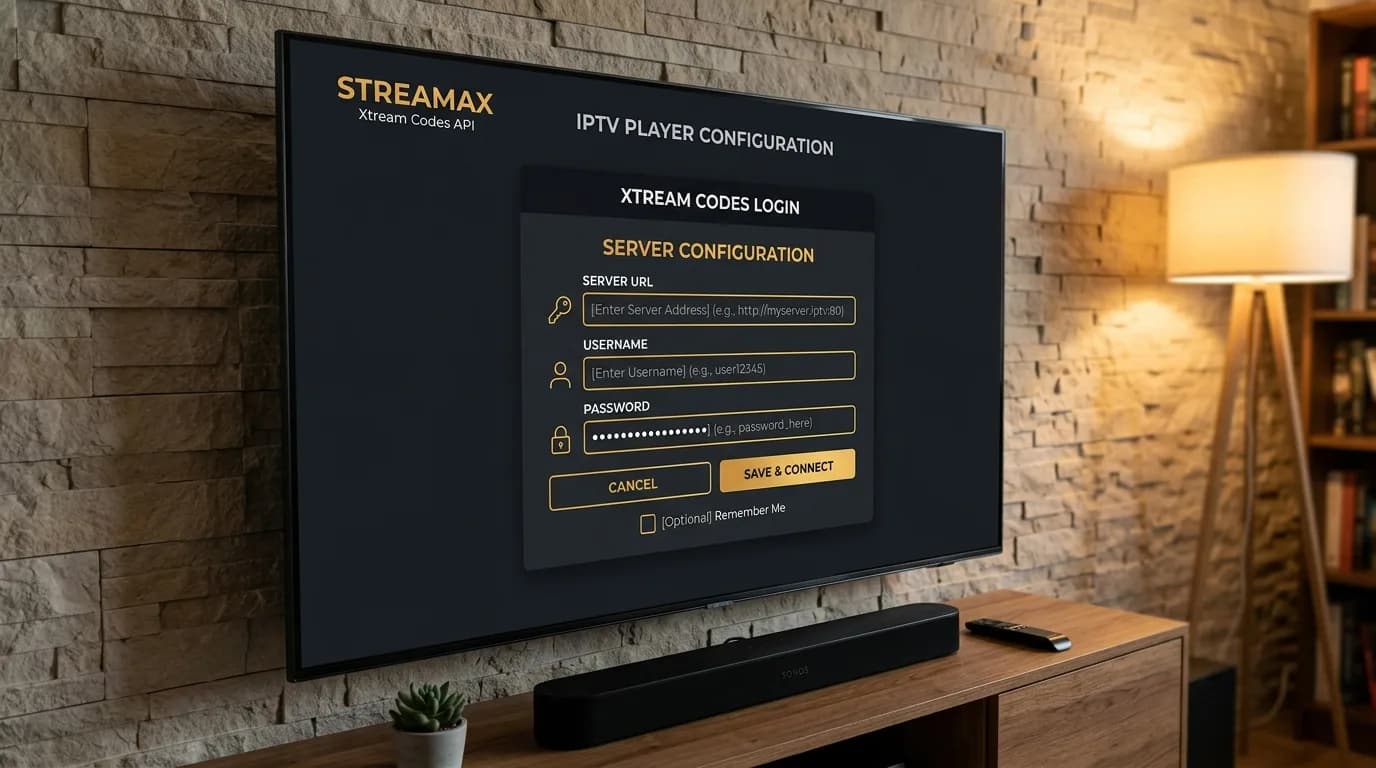
Open the installed player and choose Login with Xtream Codes API. Enter any descriptive playlist name (e.g., Sasta TV), followed by the exact Server URL, Username, and Password received in your subscription confirmation.
5Sync Channels, EPG, and VOD Catalogs
Click Add User / Submit. Allow 30 to 60 seconds for the application to download your channel index and program schedule. Once synchronized, browse through our 25,000+ live television channels and 120,000+ on-demand titles organized neatly by country and category.
How to Organize Channels and Favorites
With over 25,000 channels spanning sports, movies, news, and international broadcasts, organizing your personal viewing catalog dramatically elevates your daily experience.
Creating Custom Favorites Lists for Rapid Navigation
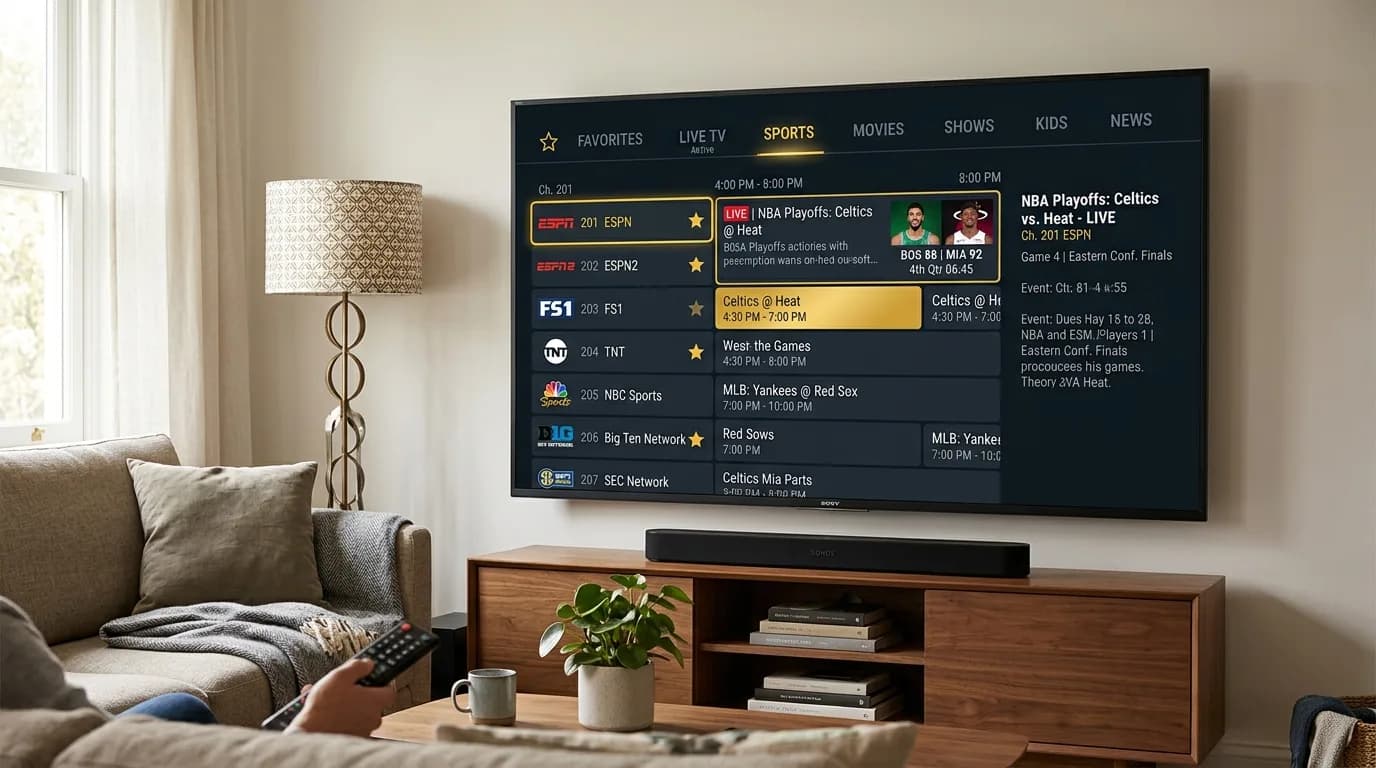
In TiviMate or IPTV Smarters Pro, highlight any live channel on your screen and hold down the Select / OK button on your Fire TV remote. Choose Add to Favorites. Your favorited channels appear instantly in a dedicated quick-access folder at the top of your TV guide, allowing you to access key sports networks and evening news broadcasts with one click.
Hiding Unused Regional Groups
If you primarily watch UK, US, and European sports, you can hide foreign-language categories that you do not watch. In your player’s group management menu, toggle unneeded international packages to Hidden. This reduces memory usage on your Firestick and speeds up EPG refresh cycles.
Best Network Setup for Firestick
Streaming live sports at 60 FPS in 4K resolution requires sustained data throughput without packet loss. Because televisions are often mounted against walls or surrounded by electronic entertainment equipment, wireless signals can experience radio frequency attenuation.
5 GHz Wi-Fi vs. 2.4 GHz Congestion
Always connect your Fire TV Stick to your router’s 5 GHz Wi-Fi network. The older 2.4 GHz band is heavily congested by neighboring routers, smartphones, and household electronics, leading to micro-stutters. While 5 GHz has slightly shorter physical range, its wider channel bandwidth is crucial for continuous high-bitrate video.
Eliminate Packet Drop with an Official Ethernet Adapter
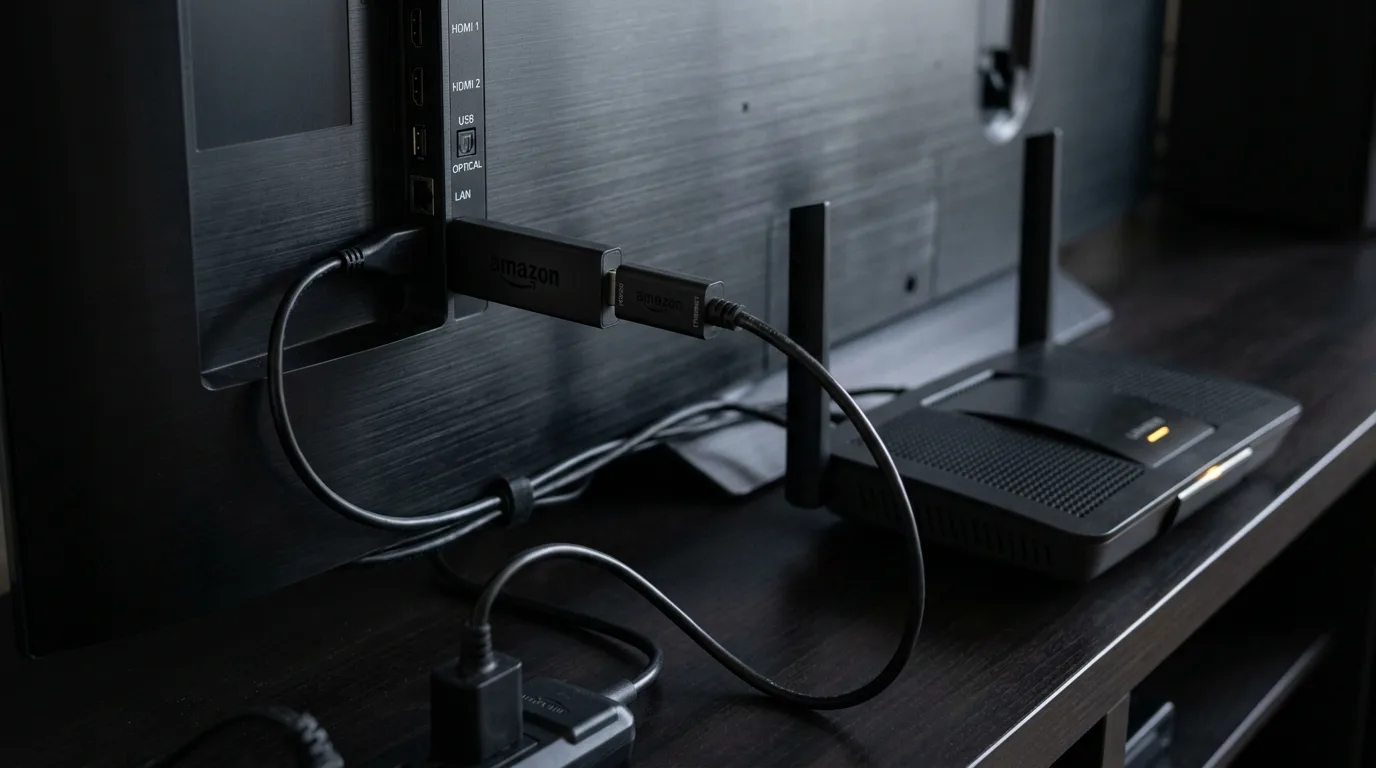
For the ultimate zero-buffering experience, consider pairing your Firestick with the official Amazon Ethernet Adapter . Connecting a physical Cat6 cable directly from your router into your Firestick bypasses all wireless interference, dropping local latency to under 2 ms. If you frequently encounter stream freezes during major fixtures, read our companion guide on how to fix IPTV buffering and speed up streams.
How to Reduce Buffering on Firestick
Even with high broadband speeds, suboptimal application settings can cause playback pauses. Adjusting two critical media settings in your IPTV player will stabilize high-definition feeds:
1. Increase Playback Buffer Size
Within TiviMate or IPTV Smarters Pro settings, locate the Playback > Buffer Size configuration. Switch the buffer from None or Small to Large. A larger buffer pre-loads several seconds of incoming video packets into RAM, allowing playback to glide through momentary Wi-Fi dips without freezing.
2. Enable Auto Frame Rate (AFR) Matching
Live European football feeds broadcast at 50Hz, while North American sports air at 60Hz. If your Firestick is locked to 60Hz while displaying a 50Hz UK broadcast, you may perceive subtle motion judder. Enabling Auto Frame Rate Matching synchronizes your TV refresh rate with the source video for perfectly smooth panning shots.
Common Firestick Problems and Fixes
If you encounter unexpected errors during setup or streaming, use these proven technical resolutions:
Playlist Times Out or Fails to Authenticate
Verify that the Server URL is typed exactly as provided, including port numbers (e.g., :80 or :8080) and that there are no trailing spaces. Usernames and passwords are case-sensitive.
Video Plays with No Audio (Audio Codec Mismatch)
Some sports channels use Dolby Digital Plus (E-AC-3) audio tracks. In your player settings, switch the audio decoder from Software to Hardware, or toggle Fire OS settings under Display & Sounds > Audio > Surround Sound to Best Available.
Application Closes or Firestick Restarts Spontaneously
Ensure your Firestick is powered directly using the included wall adapter rather than a low-wattage TV USB port. Under-powered sticks can crash when drawing peak power to decode 4K HDR video.
To learn more about our server infrastructure and stability guarantees, read our complete Sasta TV in-depth review and feature breakdown.
Final Setup Checklist
Review this rapid reference checklist before sitting down to enjoy your favorite live sports or weekend movie marathons:
- Firestick connected to 5 GHz Wi-Fi or wired Ethernet adapter.
- Developer options enabled and Downloader app installed.
- TiviMate or IPTV Smarters Pro configured with Xtream Codes API.
- Player buffer size set to "Large" to prevent micro-stutters.
- Key sports and entertainment channels tagged to your personal Favorites folder.
Need Instant Activation or Support?
Our 24/7 technical desk provides instant credentials delivery and live onboarding assistance via WhatsApp. Protected by our 7-day 100% money-back guarantee.
Firestick Guide Frequently Asked Questions
Which Amazon Firestick model is best for IPTV streaming?
The Fire TV Stick 4K Max (2nd Gen) and Fire TV Stick 4K offer the best streaming performance. They feature faster quad-core processors, 2GB of RAM, and Wi-Fi 6/6E support, which significantly reduces channel switching delay and prevents frame stutter during 4K 60 FPS live sports broadcasts.
Do I need to jailbreak or root my Firestick to use IPTV?
No, you do not need to jailbreak or modify your Firestick hardware. Installing an IPTV player simply requires enabling 'Apps from Unknown Sources' within Fire OS developer settings, which is a standard native feature for sideloading legitimate media apps like TiviMate or VLC.
What is the difference between Xtream Codes API and an M3U playlist link?
Xtream Codes API uses your Server URL, Username, and Password to dynamically fetch channels, on-demand movies, and TV guides in organized categories. An M3U link is a static file containing stream URLs. Xtream Codes is strongly recommended because it synchronizes faster, updates automatically, and includes built-in EPG data.
Why is my Firestick buffering when my internet speed is high?
High headline download speed does not guarantee smooth streaming if your local Wi-Fi suffers from packet loss, high latency jitter, or 2.4 GHz radio congestion. Connecting your Firestick to the 5 GHz Wi-Fi band or using an official Ethernet adapter resolves most buffering issues immediately.
Can I use one Sasta TV subscription across multiple Firesticks?
A single subscription line is engineered to stream on one device at a time to prevent stream throttling. If you have multiple televisions in your household, Sasta TV offers flexible multi-room plans supporting 2, 3, or 4 simultaneous device connections.
Will my Firestick channel list update automatically when new channels are added?
Yes. When connected via Xtream Codes API in modern players like TiviMate or IPTV Smarters Pro, the app queries the server upon launch and automatically refreshes channel lineups, updated sports schedules, and newly added VOD titles.