
How to Fix IPTV Buffering: 5 Proven Tips to Eliminate Lag & Freezing
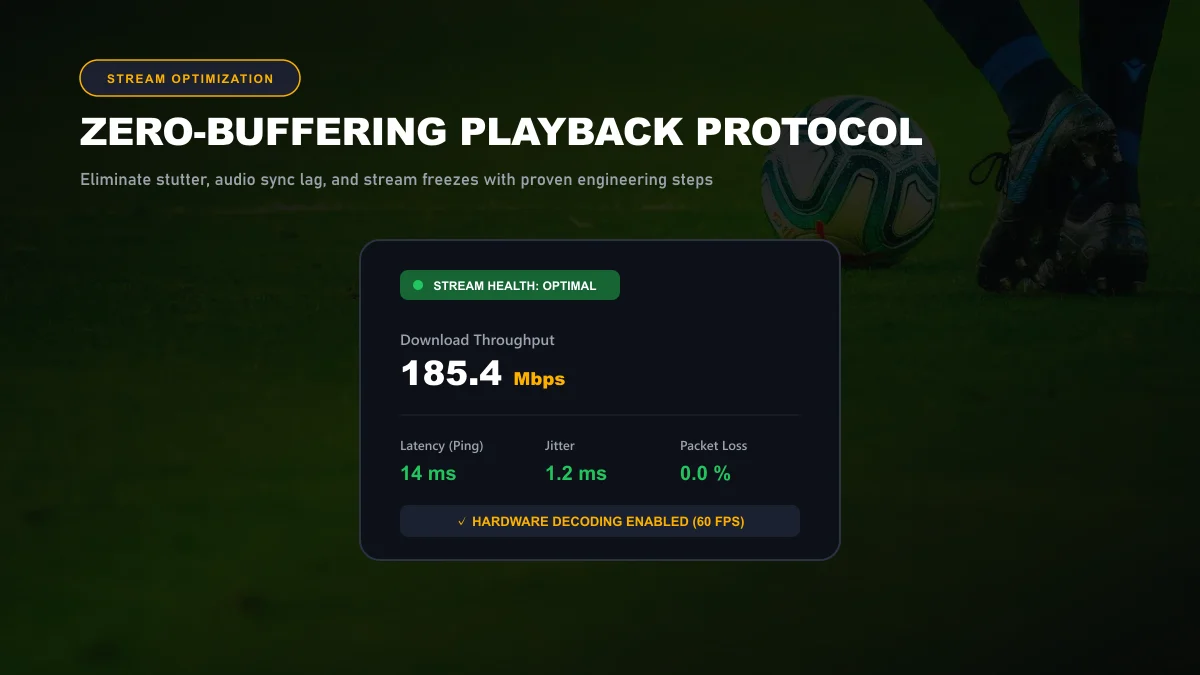
IPTV buffering is usually caused by local Wi-Fi packet loss, high latency jitter, device memory bottlenecks, or player buffer misconfigurations rather than total raw broadband speed. In 90% of cases, you can eliminate stream freezes in under five minutes by connecting to a 5 GHz wireless band or Ethernet cable, expanding your media player's buffer size, and switching to hardware video decoding.
What Causes IPTV Buffering?
Unlike on-demand video platforms like Netflix or YouTube—which can pre-download minutes of upcoming video into cache—live IPTV streams continuously in real time. If data delivery is delayed for even half a second, the media player exhausts its playback cache and freezes the video frame.
The most prevalent causes of live stream buffering include:
Wireless Radio Interference
Streaming over congested 2.4 GHz Wi-Fi frequencies or through multiple interior walls introduces packet loss and micro-disconnections.
Jitter and High Ping Latency
Erratic ping spikes disrupt continuous video packet flow even if speed test benchmarks show high overall download numbers.
Insufficient Player Buffer Allocation
If your media player is set to "None" or "Small" buffer sizing, any brief millisecond network hiccup triggers an immediate loading wheel.
ISP Throttling During Live Events
Certain internet service providers deliberately restrict streaming bandwidth during peak Premier League or Champions League match windows.
1. Check Your Internet Connection
A common misconception among cord-cutters is that high download speed alone guarantees buffer-free streaming. In live broadcasting, connection consistency is far more critical than raw speed.
Measuring Speed vs. Measuring Connection Stability
While streaming a 1080p 60 FPS sports channel requires only 15 to 25 Mbps of continuous throughput, that bandwidth must arrive steadily. As explained in Cloudflare's network latency guide and their research on network jitter , jitter measures variations in packet arrival times. When packets arrive out of sequence or suffer burst delays, the streaming decoder is starved of frames.
Target Network Benchmarks for Buffer-Free IPTV:
- Download Bandwidth: Minimum 25 Mbps (FHD) / 50 Mbps (4K Ultra HD).
- Latency (Ping): Below 30 ms to local servers.
- Jitter: Below 5 ms. Anything above 15 ms results in noticeable frame drops.
- Packet Loss: Exactly 0.0%. Even 1% packet loss causes frequent video freezes.
2. Use Ethernet or Improve Wi-Fi
The transmission medium between your home router and your streaming device is the single most frequent cause of IPTV playback lag.
Why Direct Ethernet Outperforms Wireless for 60 FPS Video
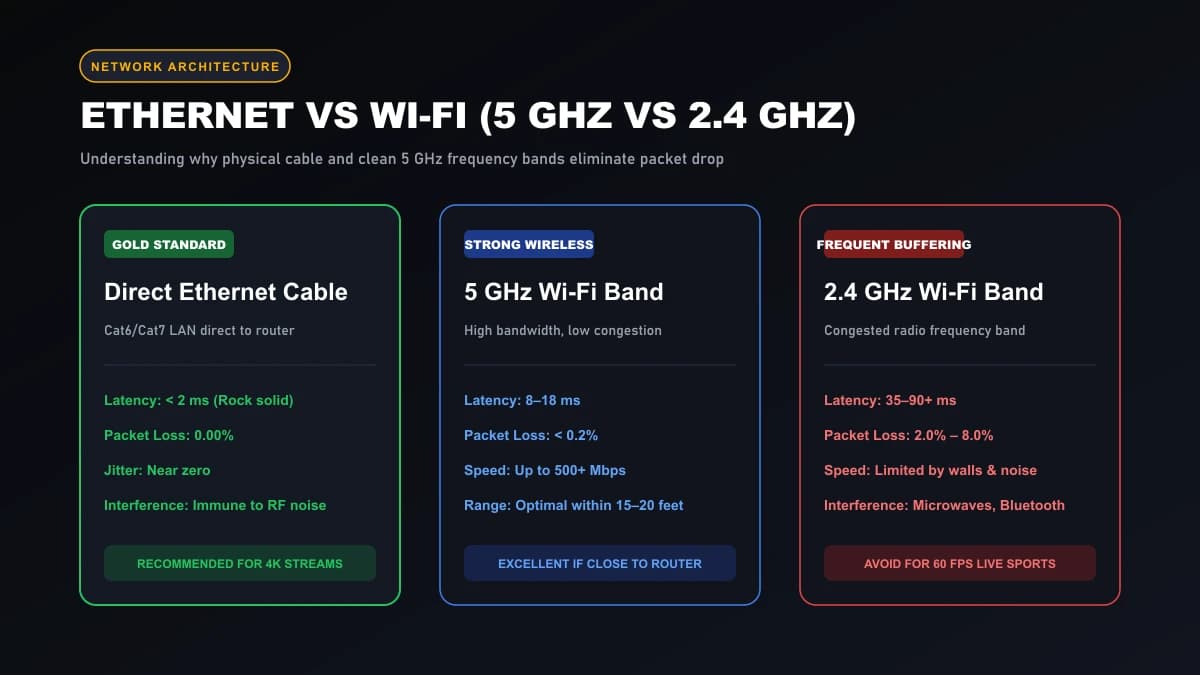
Physical Ethernet cables (Cat6 or Cat7) transmit electronic signals through shielded twisted-pair copper wires completely immune to radio frequency noise, microwave ovens, or neighboring Wi-Fi networks. Switching to an Ethernet connection drops jitter to near zero and ensures 0.0% packet loss.
Optimizing Wireless: 5 GHz Band vs. 2.4 GHz Congestion
If running an Ethernet cable is not feasible, ensure your streaming hardware is connected strictly to the 5 GHz Wi-Fi frequency band. Although the 2.4 GHz band penetrates solid walls more effectively, it is heavily congested with narrow channel bandwidth. In contrast, 5 GHz provides wider data lanes capable of carrying continuous 4K bitrates without intermittent packet queuing. For television-specific 100 Mbps port limitations and wireless optimization on Samsung and LG displays, consult our dedicated Smart TV IPTV guide.
3. Restart Your Router and Streaming Device
Consumer routers and streaming sticks operate non-stop for weeks at a time, gradually accumulating memory fragmentation, stale DNS records, and bloated NAT routing tables.
Performing a Full Hardware Power Cycle
Do not simply tap the remote power button (which places streaming devices in standby sleep mode). Instead, perform a clean cold reboot:
- Unplug the power cables from both your broadband router and your streaming device (Firestick, Android TV box, or Apple TV).
- Leave them disconnected for a full 60 seconds to allow internal capacitors to discharge and clear volatile RAM.
- Plug the router in first and wait 2 to 3 minutes until all broadband and internet status LEDs stabilize green.
- Plug your streaming device back in, relaunch your IPTV player, and re-test the live broadcast.
4. Clear Cache and Optimize the IPTV Player
Your media player application acts as the rendering engine for live broadcasts. Misconfigured player settings can easily choke even the fastest internet connection.
Adjusting Playback Buffer Cache
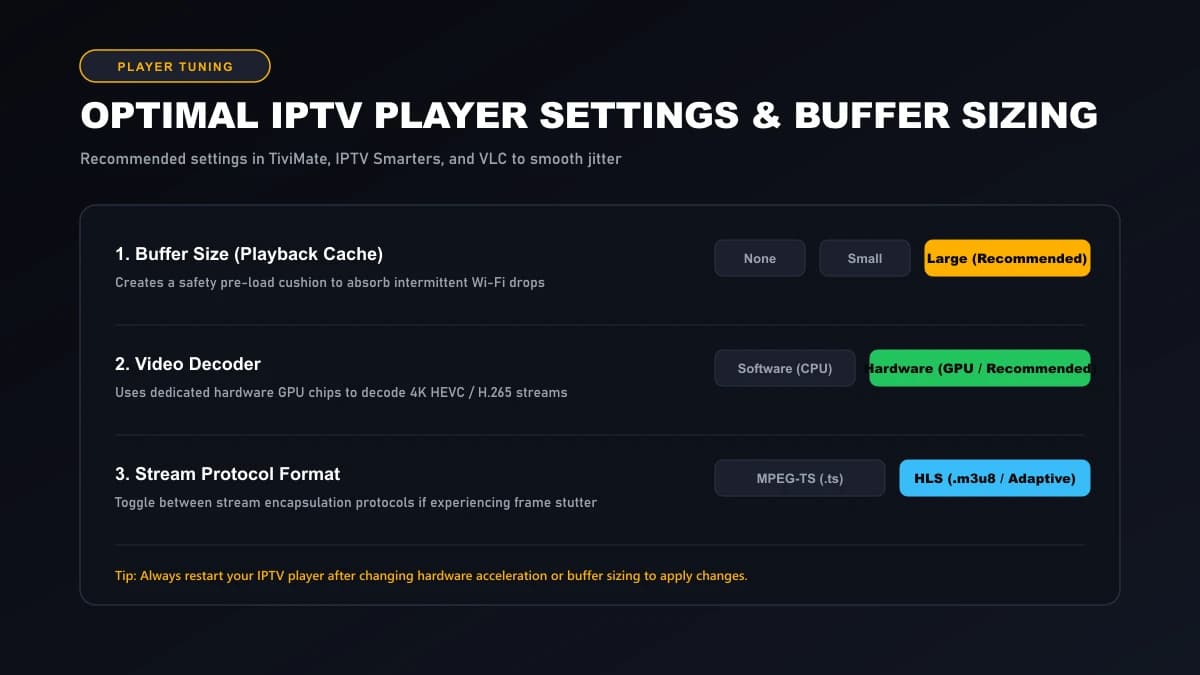
In high-performance players like TiviMate or IPTV Smarters Pro, navigate to Settings > Playback. Look for the Buffer Size setting. By default, many players set this to None or Small for rapid channel flipping. Switch this setting to Large (or 5–10 seconds). This instructs the player to retain several seconds of audio/video packets in memory, allowing your stream to cruise through temporary network micro-dips without freezing.
Enabling Hardware Acceleration (GPU Video Decoding)
Ensure your video decoder is set to Hardware rather than Software. Hardware decoding delegates 4K HEVC and H.264 decompression directly to your streaming stick’s onboard GPU graphics silicon. Software decoding forces your device’s central CPU to process every frame, resulting in rapid thermal throttling, dropped frames, and eventual app crashes.
5. Try a Different IPTV Player or Stream Format
If buffering persists on a specific channel, the issue may stem from how your media player parses the incoming transport stream format.
Switching Between MPEG-TS (.ts) and HLS (.m3u8) Streams
Most high-tier IPTV providers support both MPEG-TS and HLS (HTTP Live Streaming) formats. MPEG-TS delivers lower broadcast delay but requires near-perfect packet delivery. If your internet connection suffers from slight packet loss, switch your playlist stream format in player settings to HLS. HLS chunks video into distinct segments, providing far greater resilience against erratic wireless networks as specified in Apple's HTTP Live Streaming protocol specifications .
Testing Alternative Media Players
Different IPTV apps utilize distinct internal media rendering engines (such as ExoPlayer vs. VLC internal). If a channel stutters in IPTV Smarters, test the same channel in TiviMate or XCIPTV. You can find step-by-step setup guides for various platforms in our device setup tutorials.
Firestick-Specific Buffering Fixes
Because Amazon Fire TV Sticks operate within a compact HDMI stick form factor with limited internal RAM (typically 1.5GB to 2GB), background processes can cause playback lag:
- Force Close Background Apps: Navigate to Settings > Applications > Manage Installed Applications. Select background apps you are not using (e.g., Netflix, YouTube) and click Force Stop followed by Clear Cache to free up RAM.
- Maintain at Least 1GB of Free Storage: Check Settings > My Fire TV > About > Storage. If available flash memory is under 500MB, your IPTV player cannot create temporary cache files, causing freezes.
- Enable Match Original Frame Rate: Go to Settings > Display & Sounds > Display > Match Original Frame Rate and toggle it to ON. This prevents motion jitter when viewing 50Hz UK or European sports feeds.
For an exhaustive walkthrough on configuring your Amazon streaming hardware, read our dedicated Firestick IPTV subscription setup guide.
When a VPN May or May Not Help
There is widespread misunderstanding regarding Virtual Private Networks (VPNs) and IPTV performance. A VPN is not a magic cure for all buffering:
When a VPN DOES Help Eliminate Buffering
If your internet service provider actively throttles live video traffic during major weekend football fixtures or routes your data through congested peering exchanges, connecting to a reputable VPN encrypts your packets. Your ISP can no longer inspect the streaming protocol, bypassing bandwidth throttling and smoothing playback.
When a VPN WORSENS Buffering
If your buffering is caused by weak local Wi-Fi, low baseline broadband speed, or an overloaded Firestick processor, adding a VPN introduces cryptographic encryption overhead and additional routing hops that can reduce your speed by 15% to 30% and increase latency.
How to Tell if the Problem Is on Your Side or the Provider Side
Before spending hours troubleshooting your home router, run this simple 30-second isolation test to pinpoint the exact location of the bottleneck:
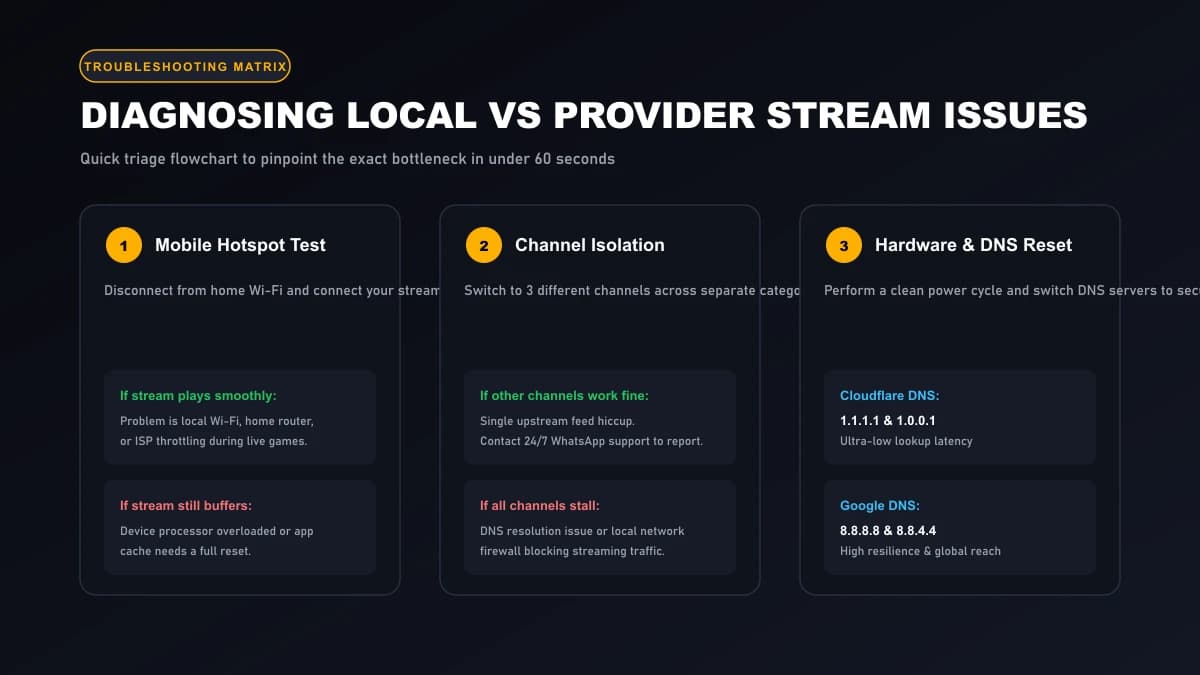
The 30-Second Mobile Hotspot Isolation Test
- Disconnect your streaming device from your home Wi-Fi network.
- Turn on the Personal Hotspot feature on your 4G or 5G smartphone.
- Connect your streaming device to your smartphone hotspot and reopen the buffering channel.
Outcome A: If the stream plays flawlessly on mobile data, your IPTV provider’s server is completely healthy. The issue lies squarely in your local Wi-Fi signal, your home router’s firewall, or your home ISP throttling streaming traffic.
Outcome B: If the channel buffers identically on mobile data, check 3 other channels in different categories (e.g., an international news channel or a VOD movie). If other channels play fine, that single broadcast feed is experiencing upstream satellite issues.
Also consider switching your router's DNS resolvers to secure public providers like Cloudflare (1.1.1.1 and 1.0.0.1) as described in Cloudflare's 1.1.1.1 documentation , which prevents ISP DNS hijacking and reduces lookup latency.
When to Contact Sasta TV Support
If you have performed the mobile hotspot test and confirmed that a specific channel is malfunctioning across multiple devices, our technical operations desk is ready to assist. Contact our team directly through our 24/7 WhatsApp support desk.
When messaging support, provide:
- Your subscription username or registered phone number.
- The exact channel name and regional category (e.g., UK | Sky Sports Premier League 4K).
- Your streaming device model and player application (e.g., Firestick 4K Max running TiviMate).
- The result of your mobile data hotspot test.
Our engineers can instantly check server logs, switch backup satellite transponder streams, or issue a clean portal reset.
Quick Troubleshooting Checklist
Keep this 5-point rapid checklist handy whenever you experience streaming pauses:
- Switch from 2.4 GHz Wi-Fi to a 5 GHz wireless network or direct Ethernet cable.
- Perform a 60-second power cycle on both your router and streaming device.
- Increase your player buffer size to "Large" in TiviMate or IPTV Smarters.
- Verify that Hardware Video Decoding is enabled in your media player settings.
- Execute the 30-second mobile hotspot test to verify whether your home ISP is throttling.
Ready for a Truly Buffer-Free IPTV Experience?
Sasta TV combines high-bandwidth European server networks with 99.9% uptime and a 7-day money-back guarantee.
Optimization Guide Frequently Asked Questions
Why does my IPTV only buffer during major live football matches?
Buffering specifically during high-profile live events is usually triggered by one of two factors: internet service providers (ISPs) actively throttling streaming video traffic during peak match windows, or upstream feed congestion. Testing with an alternate connection (such as a 4G/5G mobile hotspot) will immediately pinpoint whether ISP throttling is the culprit.
What buffer size should I choose in TiviMate or IPTV Smarters?
Setting your buffer size to 'Large' (typically 5 to 10 seconds of pre-loaded video) provides the best protection against transient Wi-Fi packet drops and jitter. While channel switching may take an extra fraction of a second, continuous playback will be significantly more stable.
Does changing my DNS server really stop IPTV buffering?
Yes, switching from default ISP DNS to high-speed public resolvers like Cloudflare (1.1.1.1) or Google (8.8.8.8) can dramatically decrease domain lookup latency and bypass DNS-level bandwidth filtering imposed by certain internet providers.
Will a VPN eliminate IPTV buffering completely?
A VPN only eliminates buffering if your ISP is intentionally throttling your streaming traffic. If your buffering is caused by weak Wi-Fi, low raw bandwidth, or an overloaded device processor, a VPN can actually worsen buffering by adding encryption overhead and routing latency.
Should I use Hardware or Software video decoding?
Hardware decoding is strongly recommended for 99% of streaming devices. It offloads 4K HEVC and H.264 video decompression to your device's dedicated GPU, keeping CPU temperatures low and preventing frame drops during high-bitrate 60 FPS sports broadcasts.
How much free storage should I keep on my streaming device?
Keep at least 1GB of free storage on your Firestick or Android TV. When internal flash memory fills up, the operating system cannot allocate sufficient disk space for the media player's temporary playback buffer, leading to frequent app freezes.