
IPTV Smarters Pro Setup Guide 2026: Smart TV, Firestick, Android & iPhone
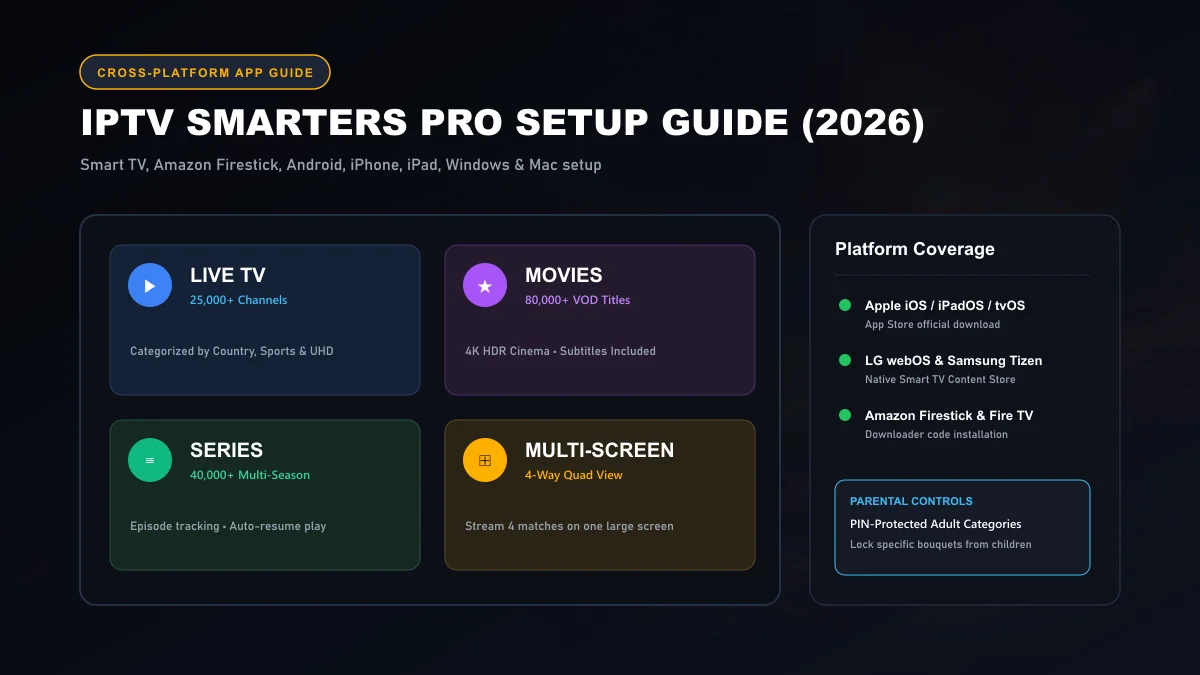
IPTV Smarters Pro is the world’s most versatile, cross-platform streaming application in 2026. Available natively across Samsung Smart TVs, LG webOS, Amazon Firestick, Apple iOS, Android, and Windows PCs, Smarters Pro offers an intuitive multi-screen interface, integrated movie subtitles, and parental pin locks—making it the ideal streaming hub for families and multi-device households.
What IPTV Smarters Pro Is & Why It Is Popular
Unlike players restricted to a single operating system, IPTV Smarters Pro is engineered from the ground up for universal cross-platform compatibility. It acts as an advanced GUI player that connects to your IPTV provider’s server via the Xtream Codes API or an M3U playlist link.
Its overwhelming popularity stems from four key design strengths:
Universal Device Ecosystem
Whether you are watching on a 75-inch Samsung TV in your living room, an iPad in bed, or an Android phone on the train, the user interface remains consistent, intuitive, and easy to operate.
Dedicated VOD & Series Navigation
Smarters Pro parses on-demand content into structured cinema dashboards featuring high-resolution poster art, cast lists, plot summaries, and multi-language subtitle tracks.
Supported Devices & App Store Availability
Finding and downloading IPTV Smarters Pro varies depending on your platform's app store policies:
- LG Smart TVs (webOS): Search for "IPTV Smarters Pro" in the official LG Content Store and install directly.
- Samsung Smart TVs (Tizen): Available directly on the Samsung Smart Hub App Store in most European, UK, and American territories.
- Apple iOS / iPadOS / Apple TV: Available on the Apple App Store, frequently under the listing "Smarters Player Lite" due to Apple store submission rules. Review Apple streaming guidelines on Apple HTTP Live Streaming .
- Amazon Firestick / Android TV: Downloadable via the official Google Play Store or sideloaded on Firestick via Downloader. See our full Firestick setup tutorial.
Login with Xtream Codes API (Recommended)
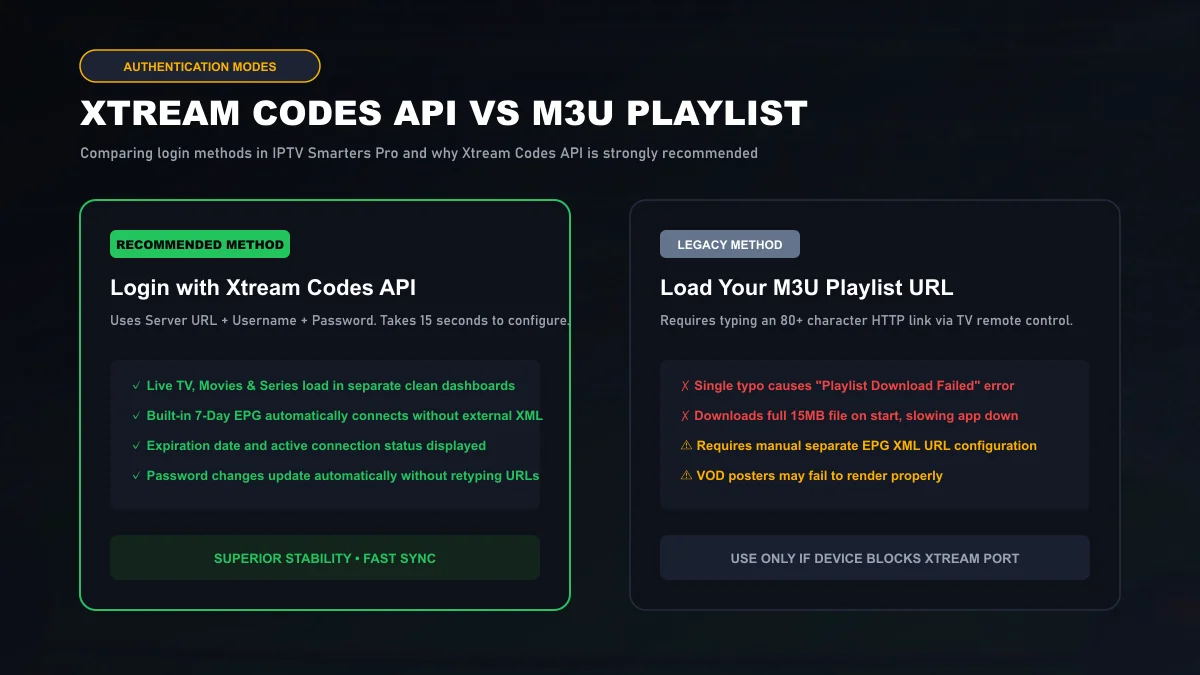
Logging in through the Xtream Codes API is vastly superior to typing out raw M3U web addresses. It connects directly to Sasta TV's database, populating Live TV, Movies, and Series into separated dashboards while automatically syncing 7-day TV guide data.
Step-by-Step Xtream Codes API Login:
- Launch IPTV Smarters Pro on your TV or mobile device.
- Click Add New User and choose Login with Xtream Codes API.
- Fill in the four fields:
- Any Name: Sasta TV
- Username: Your personal account username
- Password: Your account password
- Server URL: The edge URL provided in your activation message (e.g.,
http://sastatv-edge.net:8080)
- Click Add User. The app will verify credentials and download your channel listings in seconds.
Need subscription credentials? Explore our transparent Sasta TV subscription pricing plans.
Alternative M3U Playlist Login
If your device network restricts custom API ports, select Load Your Playlist or File/URL. Enter a playlist name, paste your complete Sasta TV M3U URL, and click Add User. Keep in mind that M3U links may require setting up an external EPG URL separately inside app settings.
EPG Guide Sync & Custom Favorites
To ensure your Electronic Program Guide stays up to date:
- On the main dashboard, click Install EPG or Update EPG.
- To save favorites, open the channel list, highlight your preferred channel, and long-press the OK / Select button on your remote. A gold star will appear, adding the channel to your dedicated Favorites folder at the top of the guide.
Multi-Language Subtitles & Audio Track Selection
Sasta TV streams feature multiple language commentary tracks and embedded subtitle files:
While watching any movie or live stream, press the Down arrow or click the screen to display playback controls. Click the Audio / Subtitle icon to toggle between commentary tracks (e.g., English, Arabic, Spanish) or enable multi-language SRT closed captions.
Parental Controls: Locking Bouquets with PIN
For households with children, IPTV Smarters Pro provides robust parental protection:
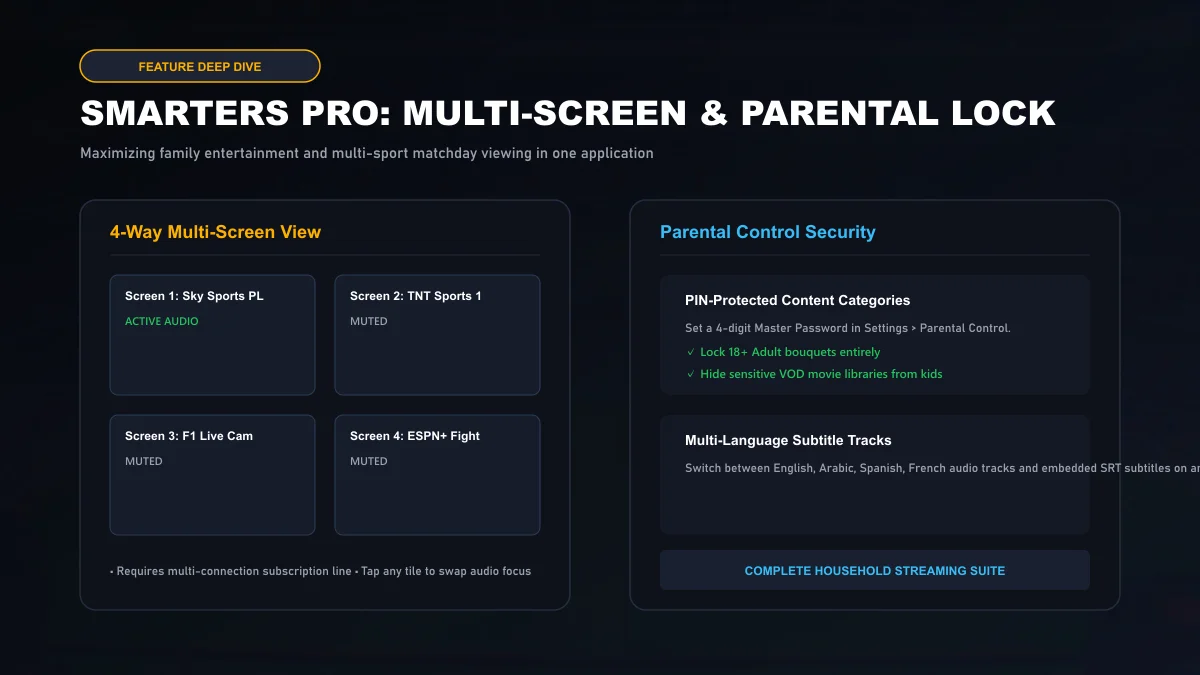
- Navigate to Settings > Parental Control on the home dashboard.
- Set a secure 4-digit master password.
- Select the specific channel groups you wish to lock (e.g., Adult 18+ or sensitive categories).
- Save settings. Those groups will now remain completely hidden until the PIN is entered.
Player Options & Login Troubleshooting
If you encounter playback or login issues in Smarters Pro, apply these proven fixes:
"Invalid Details" Login Error
Double-check that your phone or TV keyboard did not auto-capitalize the first letter of your username or insert an invisible trailing space after your password. Verify that the Server URL includes http:// and the port number (e.g. :8080).
Stream Freezing or Black Screen
Open Settings > Player Selection in Smarters Pro. Switch from the 'Built-in Player' to 'Hardware Decoder' (ExoPlayer or VLC). Hardware decoding offloads decompression directly to your GPU, eliminating stuttering on 4K 60 FPS feeds.
For network-level troubleshooting, visit our IPTV buffering troubleshooting guide or reach out to our team through 24/7 technical customer support.
Smarters Pro Tutorial Frequently Asked Questions
Is IPTV Smarters Pro free to use?
Yes. The core version of IPTV Smarters Pro is completely free to download and stream on iOS, Android, Firestick, and Smart TVs. Smarters also offers an optional paid 'Master' version with extra convenience features, but the free version handles live 4K channels, VOD, and EPG flawlessly.
Why does IPTV Smarters say 'Invalid Details' when my credentials are correct?
This error is almost always caused by an extra space copied into the Username or Password field, or omitting the port number in the Server URL (e.g., forgetting ':8080'). Double-check your exact Sasta TV WhatsApp activation message.
Can I install IPTV Smarters Pro on an iPhone or iPad?
Yes. IPTV Smarters Pro is officially available on the Apple App Store (often listed as 'Smarters Player Lite' due to iOS store naming guidelines). Simply download it and select 'Login with Xtream Codes API'.
How do I turn on subtitles for movies and series in Smarters Pro?
While a movie or series is playing, press the 'Down' arrow or tap the screen to bring up the player controls. Select the Speech Bubble / Subtitle icon, and choose your preferred language track (English, Arabic, French, Spanish, etc.) from embedded CC or external SRT sources.
How do I set up Parental Controls in IPTV Smarters Pro?
Navigate to Settings > Parental Control on the main dashboard. Enter a new 4-digit PIN code. You can then toggle specific channel groups (such as Adult 18+ or sensitive news categories) so they require the PIN before unlocking.
Why does the stream show a black screen with audio only?
A black screen with functioning audio indicates a video codec mismatch. Go to Settings > Player Settings inside Smarters Pro and switch from 'Built-in Player' to 'Hardware Decoder' or select 'VLC / ExoPlayer' as your default media engine.